
Have you recently changed your phone number and portal verification codes are still being sent to your old number?
Please follow these steps to reset your account and add your updated phone number:
- Click the Forgot your password? link on the Patient Portal landing page.

The Forgot Password page opens. - Enter the email address associated with your Patient Portal account and click Email me.
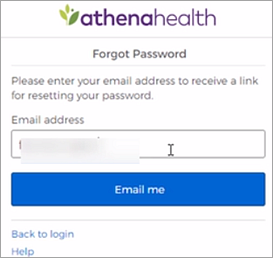
athenaOne sends the password reset email. - Open the email and click Reset Password.
The Create your new password page opens.
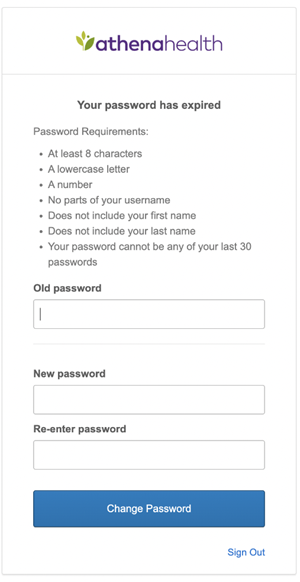
- Enter your new password twice and then click Save and continue to confirm it.
You are asked to verify your identity using the security option you created when you first set up your athenahealth login.If you set up text messaging as your security option, the following message appears:
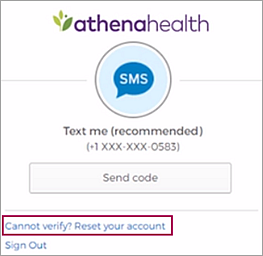
- If the phone number shown in the message is not correct — for example, if the phone was lost or discarded — click Cannot verify? Reset your account.
A warning message appears.
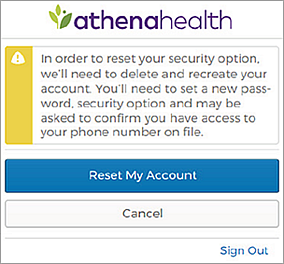
- To delete your existing account and create a new one, click Reset My Account.
Note: The account reset can take up to a minute to complete. You cannot click the Reset My Account button during this time.
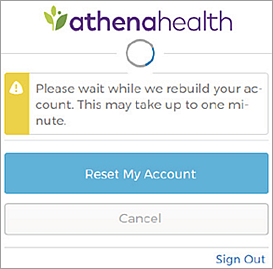
After your new Patient Portal account is created, the Create your new password page appears.
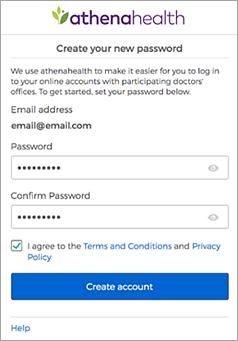
- Confirm your email address and enter your password twice. After you review the Terms and Conditions and the Privacy Policy, check the box and click Create account.
You are prompted to select a security option to protect your account. This one-time setup enables you to confirm your identity in the future if you forget your password. - Create your security option and finish creating your account.